How to block adult content on iPhone
Turn on Screen Time's Content & Privacy Restrictions, then limit adult websites, block explicit music, movies, TV shows and books, restrict apps by age rating, and turn on Sensitive Content Warning so nude images sent to you are blurred. It is all built into iOS and free. A Screen Time passcode that someone you trust chooses keeps you from switching it off on impulse.
Direct App Store link · Optional; the steps below need no app
Updated October 2026. Disclosure: we make Open Book. Menu labels follow Apple's iPhone User Guide for iOS 26 and iOS 27 and Apple's support articles, read in October 2026. Apple renames Screen Time items between versions.
This guide covers the whole phone. If you only want to filter websites in Safari, our shorter Safari guide is enough. Here you set up five layers: websites, media, apps, Siri and images people send you, then lock them.
1. Turn on Content & Privacy Restrictions
- Open Settings and tap Screen Time. If Screen Time is off, turn it on first.
- Tap Content & Privacy Restrictions and turn it on.
Every step below starts from this screen. Apple documents it in "Block apps, app downloads, websites, and purchases on iPhone" (iOS 26) and "Block features or content with Screen Time on iPhone" (iOS 27).
2. Filter adult websites
On iOS 26, tap App Store, Media, Web, & Games, then Web Content, and select Limit Adult Websites. To block a specific site, tap Add Website below Never Allow and enter its address. The iOS 27 version of Apple's guide does not list a web filter step for your own phone; on a child's iOS 27 phone, Apple puts it under Apps & Websites, Restrictions, Filtering (Apple's parental controls article). If you cannot find it, use the search field at the top of Settings.
3. Block explicit music, movies, TV shows and books
Apple's iOS 27 guide says you "can allow or block content that's labeled sensitive or explicit in the Music app, Apple TV app, Books app, and more." On iOS 27, tap Content & Privacy Restrictions and choose each item under Content Restrictions, such as Books, Movies, TV Shows and Music. On iOS 26 the same ratings are under App Store, Media, Web, & Games. These settings act on content that Apple's apps and stores label by rating.
4. Restrict apps by age rating
Under App Store, Media, Web, & Games, tap Apps and choose an age rating (iOS 26). Apple describes this as "Restrict apps by age ratings" (App Store settings and restrictions, iOS 26). It works by rating, not by name, so it cannot block one specific app. To stop new installs altogether, see how to block apps from being downloaded on iPhone.
5. Limit Siri
On iOS 26, tap Intelligence & Siri under Content & Privacy Restrictions. On iOS 27, tap Siri; Apple lists Siri AI capabilities such as Explicit Language and Sensitive Topics that you can set to Allow or Block, depending on your Siri version.
6. Blur nude images people send you
Screen Time does not cover photos and videos sent to you. For that, go to Settings, Privacy & Security, Sensitive Content Warning and turn it on. According to Apple, it blurs photos and videos that may contain nudity in Messages, AirDrop, Contact Posters, FaceTime, shared photo albums, and when you pick a photo or video to share in some third-party apps. The check runs on your iPhone, and Apple does not learn that sensitive content was detected. You can still tap to view, so it is a warning, not a block. It needs iOS 17 or later.
7. Lock it with a Screen Time passcode
Without a passcode, anyone holding your phone, including you on a bad night, can undo all of this. Apple's iOS 27 steps are Settings, Screen Time, Manage Screen Time, Lock Screen Time Settings, then a four-digit passcode (Apple's passcode guide). You can ask a friend or partner to type it. Apple also offers Screen Time Passcode Recovery, which lets you reset the passcode with your Apple Account, so skip it if you want the lock to hold.
What these settings do not do
Apple's web filter is automatic and general. It misses some pages and occasionally blocks harmless ones, and the media settings only cover content Apple's apps label as explicit. Apple does not describe any of these settings as filtering what social media and other apps show in their own feeds, so if an app keeps leading you somewhere you do not want to go, block the app itself. No setting on your own phone is bypass-proof. The goal is friction at the moment it matters.
Where Open Book helps
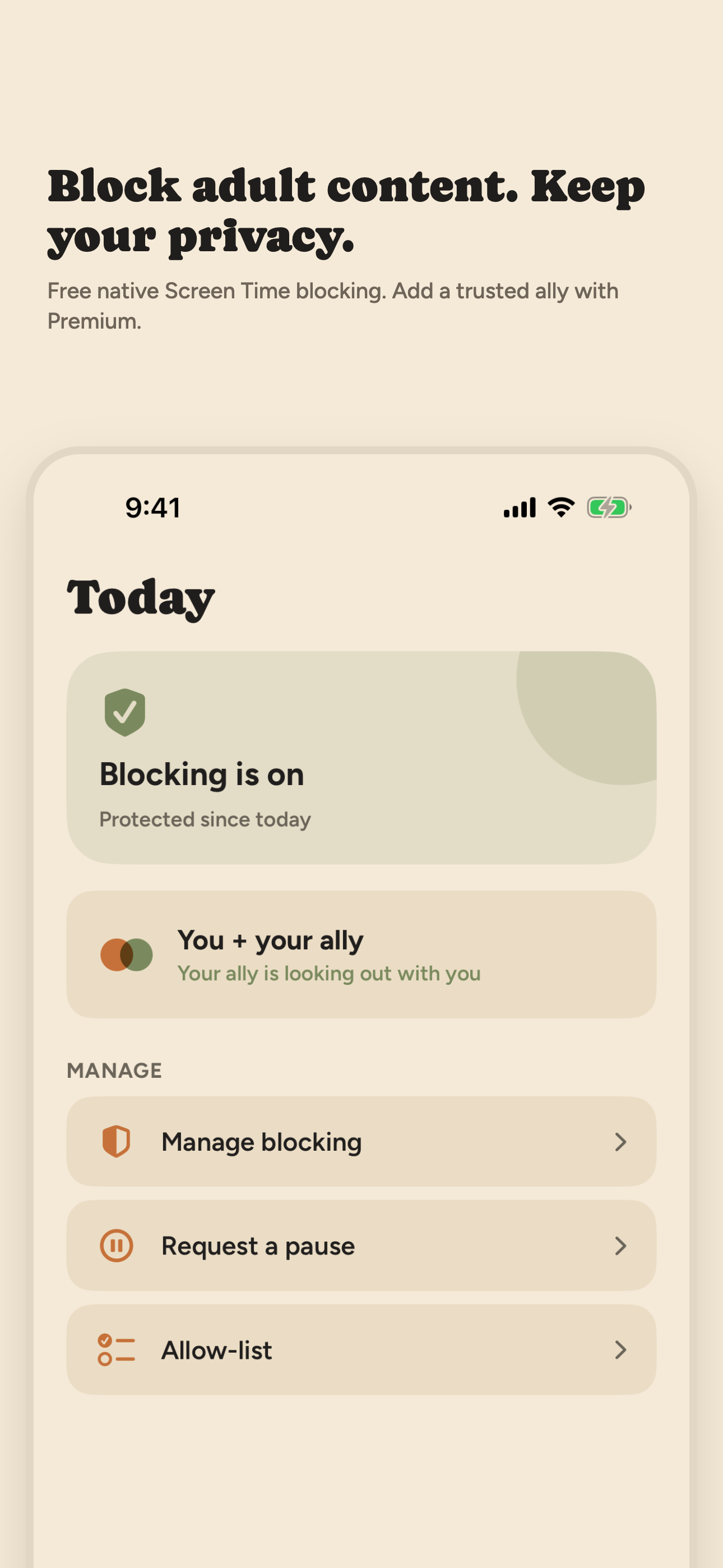
Screen Time's own app controls are built around age ratings, schedules and time allowances. Open Book uses Apple's Screen Time controls to block the apps, app categories and websites you pick with Apple's own picker, and it turns on the same Safari adult-content filter whenever blocking is on. App exceptions keep work or family apps working, and you can pause blocking for 15, 30 or 60 minutes. A private Activity log records when blocking and pauses started and stopped, event types and times only, and an optional weekly recap is built on your iPhone. There is no VPN, and Open Book does not collect or share your browsing history. It is for adults managing their own phone, not for monitoring a child. If you are comparing apps, see the best porn blocker for iPhone and BlockerX alternatives.
Frequently asked questions
How do I block adult content on my iPhone for free?
Use Screen Time. Go to Settings, Screen Time, Content & Privacy Restrictions and turn it on. Then limit adult websites under Web Content (iOS 26), restrict explicit music, movies, TV shows and books, and turn on Sensitive Content Warning under Privacy & Security. Everything here is built into iOS.
Are the steps different on iPhone 16 or iPhone 17?
The steps depend on the iOS version, not the model. Apple's iOS 26 guide lists iPhone 11 and later, plus iPhone SE (2nd generation and later), as compatible, and Apple renamed some Screen Time menus in iOS 27. If a label is missing, use the search field at the top of Settings.
How do I stop nude images in Messages on iPhone?
Turn on Sensitive Content Warning in Settings, Privacy & Security. Apple says it blurs photos and videos that may contain nudity in Messages, AirDrop, FaceTime calls and video messages, Contact Posters, shared photo albums, and when you pick a photo or video to share in some third-party apps, and that the check runs on your device.
How do I keep myself from turning the filter off?
Set a Screen Time passcode and ask someone you trust to choose it. Apple's iOS 27 steps are Settings, Screen Time, Manage Screen Time, Lock Screen Time Settings. Skip Screen Time Passcode Recovery if you want the lock to hold, because recovery lets you reset the passcode with your Apple Account. No setting on your own phone is bypass-proof.
Sources: Apple iPhone User Guide for iOS 26 (Block apps, app downloads, websites, and purchases) and iOS 27 (Block features or content with Screen Time; Create, change, or remove a Screen Time passcode); Apple Support articles 105071 (Sensitive Content Warning) and 105121 (parental controls). Read in October 2026. iOS menu labels can differ by version.
On a desktop? Point your iPhone camera here to open Open Book on the App Store.